

Debugging Failed Pipelines
Pipeline failures are one of the most frustrating experiences in software development. When your build fails, you lose time to context switching, deployments get blocked, and the whole team slows down. The average developer loses 5-10 minutes per failure just getting back into flow state.
The good news? Most pipeline failures fall into predictable patterns, and with the right troubleshooting approach, you can reduce your mean time to resolution (MTTR) by 50-70%.
Why systematic debugging matters
Debugging pipelines effectively is a learnable skill that compounds over time:
- Faster resolution: Systematic approaches help you identify root causes quickly instead of trying random fixes.
- Pattern recognition: Once you’ve seen a failure type, you’ll recognize it immediately next time.
- Team independence: You won’t need to wait for DevOps support for common issues.
- Confidence: Understanding how to debug gives you confidence to iterate faster.
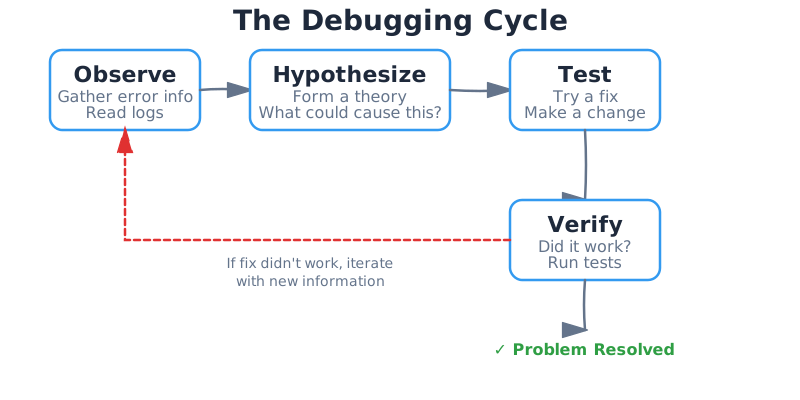
The debugging process follows a simple cycle: Observe (gather information) → Hypothesize (form a theory) → Test (try a fix) → Verify (confirm it works). When a fix doesn’t work, you cycle back with new information.
Quick Checks - Start Here
Before investigating deeply, these quick checks resolve 60% of pipeline failures in under 5 minutes. Run through this list first:
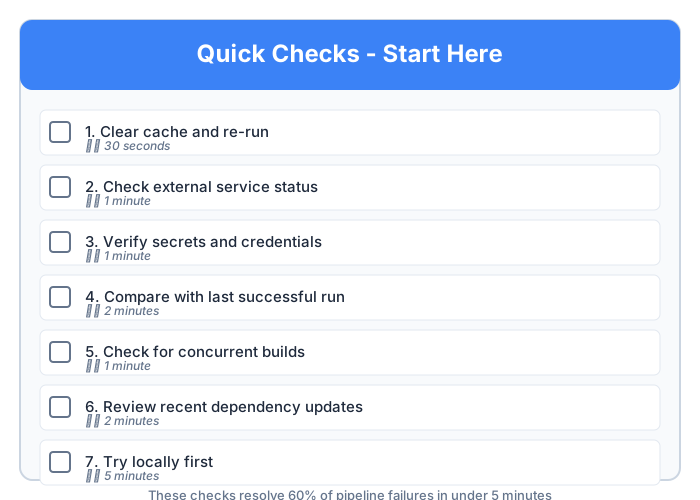
1. Clear cache and re-run
Corrupted cache is responsible for 15-20% of mysterious failures. If your build is failing with strange errors that don’t make sense, try clearing the cache.
When to suspect: Intermittent failures, works locally, error mentions “integrity” or “checksum”
How to clear:
- GitHub Actions: Delete cache via settings or change cache key
- CircleCI: Use “Rerun workflow from failed” with “Rerun job with SSH” then clear cache
- Jenkins: Clean workspace before build
- Travis CI: Clear cache via repository settings
2. Check external service status
Is the problem you, or is it them? npm registry down? GitHub having issues? Docker Hub rate limits?
Status pages to check:
- npm: https://status.npmjs.org
- GitHub: https://www.githubstatus.com
- Docker Hub: https://status.docker.com
- PyPI: https://status.python.org
If a service is degraded, wait for resolution or implement a retry strategy.
3. Verify secrets and credentials
Expired tokens and rotated credentials cause 10-15% of failures. Common signs: 401/403 errors, authentication failures, or “permission denied” messages.
How to check without exposing secrets:
# Check if secret is set (without printing value)
[ -z "$SECRET_NAME" ] && echo "Secret not set" || echo "Secret exists"

# For tokens, check if they're expired (example for JWT)
echo $JWT_TOKEN | cut -d'.' -f2 | base64 -d | jq .exp
Common issues:
- Token expired or was rotated
- Secret name typo (check for case sensitivity)
- Secret not configured for the branch/environment
4. Compare with last successful run
Often a small change broke the build. Use git or CI comparison tools to see what changed between the last successful run and the current failure.
# Compare current commit with last successful build
git diff <last-successful-commit> HEAD

# Check recent commits
git log --oneline -10
Look for:
- Dependency updates (package.json, requirements.txt, go.mod)
- Configuration changes (.yml, .json, .env)
- Environment variable changes
- CI pipeline configuration edits
5. Check for concurrent builds
Multiple builds running simultaneously can fight over shared resources or cause race conditions.
Common issues:
- Parallel jobs writing to same file/database
- Port conflicts (two jobs trying to bind to same port)
- Shared cache corruption
How to check:
- Look for other running builds in your CI provider
- Check if failure only happens with parallel jobs
- Review build concurrency settings
6. Review recent dependency updates
Lockfile changes or “latest” version tags can introduce breaking changes without you realizing it.
# Check what dependency versions changed
git diff HEAD~1 package-lock.json
git diff HEAD~1 poetry.lock
git diff HEAD~1 go.sum
Red flags:
- Major version bumps (2.x.x → 3.0.0)
- Using
^or~ranges without lockfile - “latest” tags in dependencies
- Transitive dependency updates
Quick fix: Pin to the last known working version temporarily.
7. Try locally first
Can you reproduce the failure on your machine? This tells you whether it’s a code issue or an environment issue.
Can reproduce locally? → It’s likely a code/test issue. Fix in your local environment.
Cannot reproduce locally? → It’s likely an environment difference. Check versions, environment variables, OS differences.
Tips for reproducing:
- Use the same runtime versions (Node, Python, etc.)
- Run with same environment variables
- Use Docker to match CI environment exactly
Dependency and Package Manager Issues
Package manager failures account for 25% of CI failures. These often work locally because your machine has cached versions or different lockfile states.
Common Error Patterns:
Pattern: “404 Not Found - Package doesn’t exist”
Example:
npm ERR! 404 Not Found - GET https://registry.npmjs.org/@company/private-pkg
npm ERR! 404  '@company/private-pkg@^1.2.0' is not in the npm registry
What it means: The package manager can’t find the package. Common causes: typo in package name, private package without registry authentication, or package was unpublished.
How to diagnose:
- Check package name spelling in package.json/requirements.txt/go.mod
- Verify registry URL is correct for private packages
- Check if authentication token is set and valid
- Search the package on the public registry to confirm it exists
How to fix:
For npm private packages:
# Ensure auth token is set (in CI environment variables)
npm config set //registry.npmjs.org/:_authToken=${NPM_TOKEN}

# Or use .npmrc file
echo "//registry.npmjs.org/:_authToken=\${NPM_TOKEN}" > .npmrc
For Python private packages:
# Configure pip to use private index
pip config set global.extra-index-url https://${PYPI_TOKEN}@pypi.company.com/simple
For Go private packages:
# Configure GOPRIVATE
go env -w GOPRIVATE=github.com/company/*
Pattern: “Integrity checksum failed”
Example:
npm ERR! Integrity check failed for package-lock.json
npm ERR! sha512-abc123... integrity checksum failed
What it means: The downloaded package doesn’t match the expected hash. Usually indicates: corrupted cache, registry issues, or package-lock.json out of sync with package.json.
How to diagnose:
- Check if package-lock.json was manually edited
- Verify registry is accessible and returning correct packages
- Look for merge conflicts in lockfile
How to fix:
For npm:
# Clear npm cache and reinstall
npm cache clean --force
rm -rf node_modules package-lock.json
npm install
For Python:
# Clear pip cache
pip cache purge
rm -rf requirements.txt
pip install -r requirements.txt
For Go:
# Clear module cache
go clean -modcache
rm go.sum
go mod download
Pattern: “Version conflict / Could not resolve dependencies”
Example:
npm ERR! ERESOLVE could not resolve
npm ERR! peer react@"^18.0.0" from [email protected]
npm ERR! but project requires react@"^17.0.0"
What it means: Multiple packages require incompatible versions of the same dependency (peer dependency conflict).
How to diagnose:
- Read the full error to identify conflicting packages
- Use dependency tree tools to see the conflict:
npm ls react # npm pip show package # pip go mod graph # go - Check if recent updates introduced the conflict
How to fix:
For npm (use overrides):
// package.json
{
  "overrides": {
    "react": "^18.0.0"
  }
}
For npm (use legacy peer deps):
npm install --legacy-peer-depsFor Python (use constraints):
# constraints.txt
package-name<2.0.0,>=1.5.0
For Go (use replace directive):
// go.mod
replace github.com/old/package => github.com/new/package v1.2.3
Pattern: “Lockfile is out of date”
Example:
error package-lock.json: outdated lockfile
The package-lock.json doesn't match package.json
What it means: The lockfile doesn’t reflect the current state of package.json. Usually from manual package.json edits or merge conflicts.
How to diagnose:
- Check git history for package.json changes without lockfile updates
- Look for merge conflict markers in lockfile
How to fix:
# Regenerate lockfile
npm install           # npm (updates package-lock.json)
pip freeze > requirements.txt  # pip (updates requirements.txt)
go mod tidy          # go (updates go.sum)
poetry lock          # poetry (updates poetry.lock)

# Commit the updated lockfile
git add package-lock.json
git commit -m "Update lockfile"
Flaky and Timing-Dependent Tests
Flaky tests erode trust in CI and slow teams down. 40% of teams report flaky test problems. These tests pass sometimes and fail other times with the same code.
Common Error Patterns:
Pattern: “Test timeout exceeded”
Example:
FAIL src/api.test.js (45.234s)
  ✕ should return user data (30001ms)

Error: Timeout - Async callback was not invoked within the 30000ms timeout
What it means: A test took longer than the configured timeout. Usually waiting for something that never happens (network call, element to appear, promise to resolve).
How to diagnose:
- Identify which specific test/assertion times out
- Check if test makes network calls without mocks
- Look for infinite waits or missing completion signals
- Check if timeout only happens in CI (slower than local)
How to fix:
Increase timeout selectively (not globally):
// Jest
test('slow operation', async () => {
  // ...
}, 60000); // 60 second timeout for this test only

// Cypress
cy.get('.slow-element', { timeout: 10000 })
Better: Mock external calls:
// Mock fetch/axios to avoid real network calls
jest.mock('axios');
axios.get.mockResolvedValue({ data: mockData });
Best: Use proper async patterns:
// Bad: arbitrary wait
await new Promise(resolve => setTimeout(resolve, 5000));

// Good: wait for condition
await waitFor(() => expect(element).toBeVisible());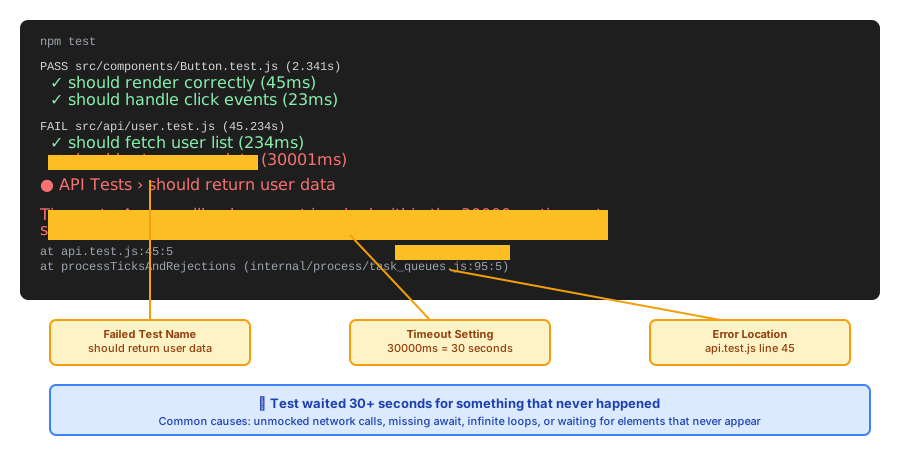
Pattern: “Intermittent assertion failures”
Example:
Expected: "Processing complete"
Received: "Processing..."

This test passes sometimes but fails randomly.
What it means: Race condition or timing dependency. Test doesn’t wait long enough for async operations, or depends on timing that varies.
How to diagnose:
- Run test 10 times locally:
npm test -- --testNamePattern="flaky test" --maxWorkers=1 - Check for async operations without proper awaits
- Look for tests that depend on execution order
- Check if test shares state with other tests
How to fix:
Add proper waits:
// Bad: hope it's done by now
await someAsyncFunction();
expect(result).toBe('done');

// Good: wait for specific condition
await waitFor(() => {
  expect(getResult()).toBe('done');
}, { timeout: 5000 });
Isolate test data:
// Bad: shared state
const user = { id: 1, name: 'Test' };

// Good: unique per test
const user = { id: Date.now(), name: `Test-${uuid()}` };
Pattern: “Test passes locally but fails in CI”
Example:
Expected date: 2024-02-08T10:30:00Z
Received date: 2024-02-08T18:30:00Z

Passes on developer's machine but fails in CI
What it means: Environment differences causing failures. Common culprits: timezone differences, parallel execution, resource constraints.
How to diagnose:
- Check timezone:
echo $TZvs CI environment - Compare resource limits (memory, CPU)
- Check if failure only happens with parallel test execution
- Look for hardcoded values that depend on environment
How to fix:
Set explicit timezone:
# GitHub Actions
env:
  TZ: UTC

# CircleCI
environment:
  TZ: "/usr/share/zoneinfo/UTC"
Disable test parallelization temporarily:
# Jest
npm test -- --maxWorkers=1

# pytest
pytest -n 0
Use relative dates:
// Bad: hardcoded date
const expectedDate = new Date('2024-02-08');

// Good: relative to now
const expectedDate = new Date();
expectedDate.setHours(0, 0, 0, 0);
Pattern: “Random order failures”
Example:
✓ test A passes
✓ test B passes
✕ test C fails

When run in different order, test C passes
What it means: Tests have shared state or side effects. One test leaves data/state that affects another.
How to diagnose:
- Run tests in isolation: each test should pass alone
- Check for global variables or singletons
- Look for database records not cleaned up
- Check for filesystem changes persisting
How to fix:
Use proper setup/teardown:
// Jest
beforeEach(() => {
  // Reset database
  database.clear();
  // Reset mocks
  jest.clearAllMocks();
});

afterEach(() => {
  // Clean up
  cleanup();
});
Database transactions:
// Wrap each test in transaction and rollback
beforeEach(async () => {
  await db.beginTransaction();
});

afterEach(async () => {
  await db.rollback();
});
Randomize test order to catch issues:
# Jest
npm test -- --randomize

# pytest
pytest --random-order
Environment Mismatches
“Works on my machine” is the classic developer problem. Environment parity eliminates 30-50% of these failures.
Common Error Patterns:
Pattern: “Command not found / executable not in PATH”
Example:
/bin/sh: node: command not found
/bin/sh: python: command not found
bash: docker: command not found
What it means: The tool or executable isn’t installed in the CI environment, or it’s installed but not in the PATH.
How to diagnose:
- Check if tool is installed:
which nodein CI debug session - Verify PATH environment variable includes tool location
- Compare CI environment with local:
echo $PATH
How to fix:
GitHub Actions - use setup actions:
- uses: actions/setup-node@v4
  with:
    node-version: '20'

- uses: actions/setup-python@v5
  with:
    python-version: '3.11'
CircleCI - use docker image with tools:
docker:
  - image: cimg/node:20.10
Generic - install manually:
# Install in pipeline
apt-get update && apt-get install -y nodejs
Pattern: “Wrong version of tool/runtime”
Example:
Error: Requires Node.js >= 18.0.0
Current: v16.14.0

Works locally (Node 20) but fails in CI (Node 16)
What it means: CI is using a different version than your local environment.
How to diagnose:
- Check version in CI:
node --version,python --version,go version - Compare with local version
- Check if version is specified in CI config
How to fix:
Specify exact version in CI config:
# GitHub Actions
- uses: actions/setup-node@v4
  with:
    node-version-file: '.nvmrc'  # Read from .nvmrc

# CircleCI
docker:
  - image: cimg/node:20.10.0  # Exact version
Create version file:
# .nvmrc for Node
echo "20.10.0" > .nvmrc

# .python-version for Python
echo "3.11.5" > .python-version

# .tool-versions for asdf
echo "nodejs 20.10.0" > .tool-versions
Pattern: “Missing environment variable”
Example:
Error: API_KEY is not defined
KeyError: 'DATABASE_URL'
panic: $AWS_REGION not set
What it means: Code expects an environment variable that isn’t set in CI, or there’s a typo in the variable name.
How to diagnose:
- Check secret configuration in CI provider
- Verify variable name matches exactly (case-sensitive)
- Check if secret is configured for the branch/environment
- Look for typos in variable reference
How to fix:
Set secret in CI provider:
- GitHub Actions: Settings → Secrets and variables → Actions → New repository secret
- CircleCI: Project Settings → Environment Variables
- Jenkins: Manage Jenkins → Credentials
- Travis CI: Settings → Environment Variables
Reference correctly in config:
# GitHub Actions
env:
  API_KEY: ${{ secrets.API_KEY }}

# CircleCI
environment:
  API_KEY: ${API_KEY}
Add defaults for non-secret values:
const apiKey = process.env.API_KEY || 'default-for-testing';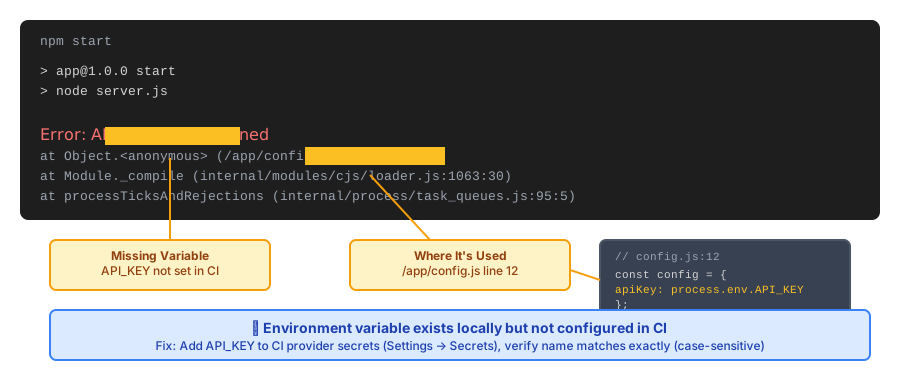
Pattern: “File/directory not found”
Example:
ENOENT: no such file or directory, open '/app/config.json'
FileNotFoundError: [Errno 2] No such file or directory: './data.csv'
What it means: Code references a file path that doesn’t exist in CI. Common causes: case sensitivity differences (macOS is case-insensitive, Linux is case-sensitive), working directory is different, or file wasn’t committed to git.
How to diagnose:
- Check if file exists in repository:
git ls-files | grep config.json - Verify file case matches exactly:
Config.jsonvsconfig.json - Check current working directory:
pwdin CI logs - Look for .gitignore excluding the file
How to fix:
Use correct case:
// Bad (might work on macOS, fail on Linux)
import config from './Config.json';

// Good (exact case)
import config from './config.json';
Set working directory explicitly:
# GitHub Actions
- run: npm test
  working-directory: ./app

# CircleCI
- run:
    command: npm test
    working_directory: ~/project/app
Use absolute or resolved paths:
// Bad: relative path may break
const dataPath = './data.csv';

// Good: resolve from known location
const path = require('path');
const dataPath = path.join(__dirname, 'data.csv');
Permission and Access Errors
Permission errors often stem from credential expiry, insufficient scopes, or misconfigured access controls. These are among the most frustrating because the error messages are often vague.
Common Error Patterns:
Pattern: “Permission denied / Access forbidden”
Example:
HTTP 403 Forbidden
fatal: could not read from remote repository
docker: denied: requested access to the resource is denied
What it means: You’re authenticated but don’t have permission to perform the action. Common causes: expired credentials, insufficient permissions/scopes, or wrong access level.
How to diagnose:
- Check token expiry date (if JWT, decode and check
expfield) - Verify token has required scopes/permissions
- Confirm user/service account has necessary roles
- Check if resource access is restricted by IP, branch, or environment
How to fix:
For GitHub:
# Ensure token has correct permissions
# Settings → Developer settings → Personal access tokens
# Required scopes: repo, workflow, write:packages
For Docker registries:
# Login with credentials
echo $DOCKER_TOKEN | docker login -u $DOCKER_USER --password-stdin

# For private registries, specify registry
echo $TOKEN | docker login registry.company.com -u $USER --password-stdin
For AWS:
# Verify IAM role/user has required permissions
# Check policy attached to credentials being used
aws sts get-caller-identity  # Verify who you're authenticated as
Update credential scopes and rotate:
# Generate new token with correct scopes
# Update secret in CI provider
# Test with new token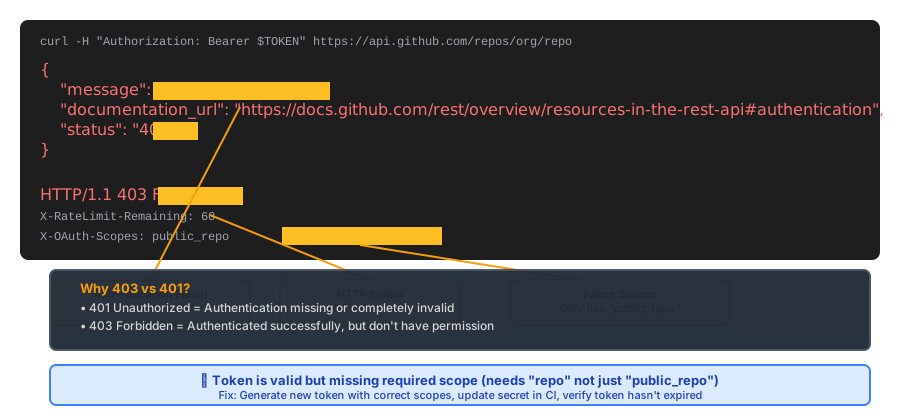
Pattern: “Authentication failed”
Example:
HTTP 401 Unauthorized
error: Authentication failed for 'https://github.com/user/repo.git'
Login failed: invalid credentials
What it means: Authentication credentials are wrong, missing, or incorrectly formatted.
How to diagnose:
- Check if secret is set:
[ -z "$TOKEN" ] && echo "Not set" - Verify secret name matches variable reference (case-sensitive)
- Check token format (Bearer token, Basic auth, API key)
- Look for whitespace or newlines in secret value
How to fix:
Verify secret format:
# For Bearer tokens
Authorization: Bearer <token>

# For Basic auth (base64 encoded username:password)
Authorization: Basic <base64-encoded-credentials>

# For API keys
X-API-Key: <api-key>
Update secret in CI:
# GitHub Actions - verify secret is set
- run: |
    if [ -z "${{ secrets.API_TOKEN }}" ]; then
      echo "API_TOKEN not set"
      exit 1
    fi
Test authentication manually:
# Test with curl to verify credentials work
curl -H "Authorization: Bearer $TOKEN" https://api.example.com/test
Pattern: “Rate limit exceeded”
Example:
HTTP 429 Too Many Requests
API rate limit exceeded for <IP address>
You have exceeded your pull rate limit (Docker Hub)
What it means: You’ve made too many requests to an API or service. Unauthenticated requests often have lower limits.
How to diagnose:
- Check rate limit headers in response:
X-RateLimit-Remaining,X-RateLimit-Reset - Verify you’re authenticating (authenticated = higher limits)
- Count how many requests your pipeline makes
- Check if multiple builds are running concurrently
How to fix:
Authenticate to get higher limits:
# GitHub Actions - automatic token for higher limits
- uses: actions/checkout@v4
  with:
    token: ${{ secrets.GITHUB_TOKEN }}

# Docker Hub - authenticate for higher limits
- run: echo ${{ secrets.DOCKER_PASSWORD }} | docker login -u ${{ secrets.DOCKER_USERNAME }} --password-stdin
Implement caching:
# Cache dependencies to reduce requests
- uses: actions/cache@v3
  with:
    path: ~/.npm
    key: ${{ runner.os }}-node-${{ hashFiles('**/package-lock.json') }}
Add retry logic with backoff:
# Retry on rate limit with exponential backoff
for i in {1..5}; do
  if curl -f https://api.example.com/resource; then
    break
  fi
  echo "Rate limited, waiting..."
  sleep $((2**i))
done
Use mirrors or proxies:
# npm registry mirror
npm config set registry https://registry.npmmirror.com

# PyPI mirror
pip install --index-url https://pypi.tuna.tsinghua.edu.cn/simple
Pattern: “EACCES: permission denied (file system)”
Example:
EACCES: permission denied, open '/usr/local/bin/tool'
PermissionError: [Errno 13] Permission denied: '/root/.config'
cannot create directory: Permission denied
What it means: File system permission issue. Can’t write to directory, execute file, or access resource due to Unix permissions.
How to diagnose:
- Check file permissions:
ls -la /path/to/file - Verify which user is running:
whoami,id - Check directory ownership:
ls -ld /path/to/directory - Look for writing to protected directories (/usr, /root)
How to fix:
Fix permissions:
# Make file executable
chmod +x ./script.sh

# Change ownership
sudo chown $USER:$USER /path/to/directory

# Create directory with proper permissions
mkdir -p ~/.config
chmod 755 ~/.config
Use user-writable locations:
# Bad: writing to system directory
npm install -g package

# Good: use user directory
npm install --prefix ~/.local package
Run as correct user:
# GitHub Actions - runs as runner user by default (good)

# Docker - run as non-root user
docker run --user $(id -u):$(id -g) image:tag
Use sudo when necessary (CI environments usually allow):
# Install system dependency
sudo apt-get update && sudo apt-get install -y build-essential
Resource and Timeout Problems
Resource constraints in CI environments can cause failures that never happen locally where you have more memory, disk space, and time.
Common Error Patterns:
Pattern: “Out of memory / OOM killed”
Example:
FATAL ERROR: Reached heap limit Allocation failed - JavaScript heap out of memory
Killed (process received SIGKILL - likely OOM)
The job exceeded the maximum memory limit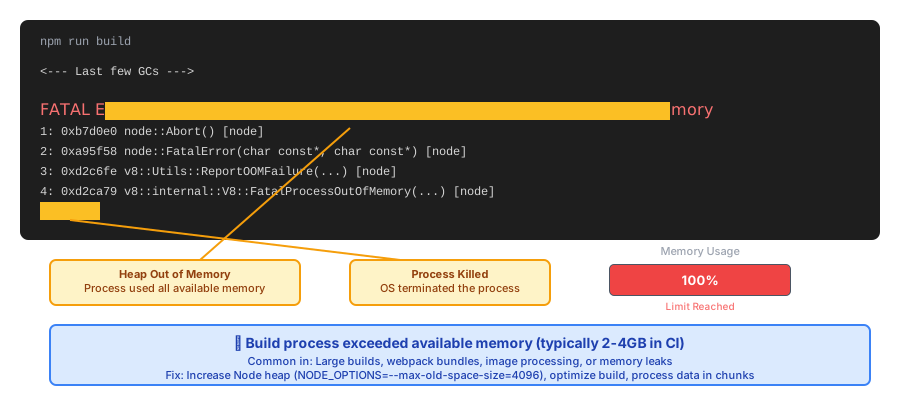
What it means: Process used more memory than available and was killed by the system. Common in: large builds, memory leaks, processing large datasets.
How to diagnose:
- Check memory limits in CI provider
- Look for memory usage spikes in CI logs
- Profile memory usage locally
- Check for obvious leaks (holding references, not cleaning up)
How to fix:
Increase memory allocation:
# Node.js - increase heap size
NODE_OPTIONS=--max-old-space-size=4096 npm run build

# Java - increase heap
JAVA_OPTS="-Xmx4g" ./gradlew build
Process data in chunks:
// Bad: load entire file into memory
const data = fs.readFileSync('huge-file.json', 'utf8');
const parsed = JSON.parse(data);

// Good: stream and process in chunks
const stream = fs.createReadStream('huge-file.json');
stream.on('data', chunk => processChunk(chunk));
Fix memory leaks:
// Bad: accumulating references
const cache = [];
function process(item) {
  cache.push(item); // Never cleared!
}

// Good: bounded cache
const cache = new Map();
function process(item) {
  if (cache.size > 1000) {
    cache.clear();
  }
  cache.set(item.id, item);
}
Request more resources:
# CircleCI - use larger resource class
resource_class: large  # 4GB memory

# GitHub Actions - use larger runner
runs-on: ubuntu-latest-4-cores  # More memory
Pattern: “Disk space full”
Example:
ENOSPC: no space left on device
Error: No space left on device (os error 28)
docker: write /var/lib/docker: no space left on device
What it means: The CI runner’s disk is full. Common causes: large dependencies, build artifacts, Docker layers, old cache.
How to diagnose:
- Check disk usage in CI:
df -h - Find large files:
du -h --max-depth=1 | sort -hr - Check Docker disk usage:
docker system df - Look for accumulating artifacts
How to fix:
Clean up before build:
# Remove old artifacts
rm -rf dist/ build/ *.log

# Clean Docker
docker system prune -af --volumes

# Clean package manager caches
npm cache clean --force
pip cache purge
Use smaller base images:
# Bad: large base image
FROM node:20

# Good: slim variant
FROM node:20-slim

# Better: alpine
FROM node:20-alpine
Optimize Docker layers:
# Bad: each RUN creates a layer
RUN apt-get update
RUN apt-get install -y package1
RUN apt-get install -y package2

# Good: combine and clean up
RUN apt-get update && \
    apt-get install -y package1 package2 && \
    apt-get clean && \
    rm -rf /var/lib/apt/lists/*
Configure artifact retention:
# GitHub Actions - delete artifacts after 7 days
- uses: actions/upload-artifact@v3
  with:
    name: build
    path: dist/
    retention-days: 7
Pattern: “Build/job timeout exceeded”
Example:
The job running on runner <id> has exceeded the maximum execution time of 60 minutes
Error: Job timeout reached (2 hours)
What it means: Pipeline exceeded the maximum allowed time. Usually slow tests, inefficient builds, or hanging processes.
How to diagnose:
- Check which step takes longest in CI logs
- Look for hanging processes (waiting on input, deadlock)
- Profile test execution:
npm test -- --verbose --coverage - Check for network timeouts or retries
How to fix:
Optimize slow steps:
# Parallelize tests
- run: npm test -- --maxWorkers=4

# Cache dependencies
- uses: actions/cache@v3
  with:
    path: ~/.npm
    key: ${{ runner.os }}-${{ hashFiles('**/package-lock.json') }}
Set timeouts appropriately:
# GitHub Actions - set job timeout
jobs:
  build:
    timeout-minutes: 30  # Fail fast instead of waiting default 6 hours

# Set step timeout
- run: npm test
  timeout-minutes: 10
Identify and fix hanging processes:
# Add timeout to commands
timeout 300 npm test  # Kill after 5 minutes

# Use --bail to stop on first failure
npm test -- --bail
Split into multiple jobs:
# Bad: one huge job
- run: |
    npm run build
    npm test
    npm run lint
    npm run deploy

# Good: parallel jobs
jobs:
  build: ...
  test: ...
  lint: ...
  deploy:
    needs: [build, test, lint]
Pattern: “Too many open files”
Example:
EMFILE: too many open files
Error: open /path/to/file: too many open files in system
ulimit: open files: cannot modify limit: Operation not permitted
What it means: Process exceeded the limit of open file descriptors. Common in: file watchers, parallel operations, file descriptor leaks.
How to diagnose:
- Check open files:
lsof -p $PID | wc -l - Check limit:
ulimit -n - Look for file watchers (Jest, Webpack, test frameworks)
- Search for file operations without closing
How to fix:
Close files properly:
// Bad: file descriptors leak
function readFile(path) {
  const fd = fs.openSync(path, 'r');
  const data = fs.readFileSync(fd);
  return data;  // fd never closed!
}

// Good: close file descriptor
function readFile(path) {
  const fd = fs.openSync(path, 'r');
  try {
    return fs.readFileSync(fd);
  } finally {
    fs.closeSync(fd);
  }
}

// Better: use higher-level APIs that handle closing
function readFile(path) {
  return fs.readFileSync(path, 'utf8');
}
Increase ulimit (if allowed):
# GitHub Actions
- run: |
    ulimit -n 4096
    npm test

# CircleCI
- run:
    command: npm test
    environment:
      NOFILE_LIMIT: 4096
Reduce file watchers:
// Jest - use --maxWorkers to limit watchers
"test": "jest --maxWorkers=2"

// Webpack - reduce watched files
watchOptions: {
  ignored: /node_modules/,
}
Provider-Specific Debugging Tools
Each CI provider has built-in debugging capabilities to help investigate failures. Here are the essential tools you should know:
CircleCI
Debugging Tools for CircleCI
CircleCI provides powerful debugging features including SSH access and insights dashboards to help diagnose failures.
1. SSH Rerun for Interactive Debugging
When to use: Need to inspect the CI environment interactively, investigate why a step fails, or debug environment-specific configuration issues.
How to enable:
- Go to your failed job in CircleCI dashboard
- Click “Rerun” dropdown in top right
- Select “Rerun job with SSH”
- Wait for job to start
- Copy SSH command from job output:
SSH enabled. To connect:
ssh -p PORT USERNAME@HOST
What you get:
- Full SSH access to the running container
- All environment variables and configuration
- Ability to run failed commands manually
- Inspect files and directory structure
Usage tips:
# Navigate to working directory
cd ~/project

# Check environment
printenv | grep -i api
env | sort

# Re-run failed command with modifications
npm test -- --verbose

# Check tool versions
node --version
npm --version

# Inspect files
ls -la
cat .circleci/config.yml
Important notes:
- SSH session times out after 10 minutes of inactivity (configurable up to 2 hours)
- Connection stays open for duration even if steps complete
- Type
exitor close terminal when done to free resources
2. Insights Dashboard
When to use: Identify patterns in failures, find flaky tests, track pipeline performance over time, or spot bottlenecks.
How to access:
- Go to CircleCI dashboard
- Click “Insights” in left sidebar
- Select your project
What you see:
- Success rate over time: Spot trends in pipeline reliability
- Duration trends: See if builds are getting slower
- Flaky test detection: Tests that pass/fail intermittently
- Most failed tests: Focus debugging efforts on problematic tests
- Credit usage: Track resource consumption
Key metrics to monitor:
- Pipeline success rate (target: >95%)
- Mean time to recovery (MTTR)
- Test flakiness percentage
- Job duration trends (catch performance regressions)
3. Step Output and Timing
When to use: Identify which specific step is failing or taking too long, understand the execution flow, or optimize slow pipelines.
How to access: Built into every job view - each step is expandable with timing information.
What you get:
- Timing for each step (helps identify bottlenecks)
- Full stdout/stderr output
- Color-coded output (errors in red)
- Collapsible sections for readability
Debugging tips:
# Add timing for custom commands
- run:
    name: "Run tests with timing"
    command: |
      echo "Starting tests at $(date)"
      time npm test
      echo "Finished tests at $(date)"

# Add debug output
- run:
    name: "Debug environment"
    command: |
      echo "=== Environment Variables ==="
      env | sort
      echo "=== Installed tools ==="
      node --version
      npm --version
      echo "=== Disk space ==="
      df -h
Store and access logs as artifacts:
- store_artifacts:
    path: test-results
    destination: test-results

- store_artifacts:
    path: /tmp/logs
    destination: logs
Access artifacts via:
- Job page → Artifacts tab
- Or direct URL:
https://output.circle-artifacts.com/output/job/:job-id/artifacts/:container-index/:path
GitHub Actions
Debugging Tools for GitHub Actions
GitHub Actions provides several built-in debugging capabilities to help investigate failures quickly.
1. Enable Debug Logging
When to use: You need more verbose output to understand what’s happening between steps, or want to see hidden commands and environment setup.
How to enable:
Add these secrets to your repository (Settings → Secrets and variables → Actions):
ACTIONS_STEP_DEBUG=true- Shows detailed step-by-step execution logsACTIONS_RUNNER_DEBUG=true- Shows runner diagnostic information
What you get:
- Detailed logs showing environment variable setup
- Hidden commands executed by actions
- Step-by-step execution trace
- Runner diagnostic information
Example output difference:
Without debug logging:
Run actions/checkout@v4With debug logging:
##[debug]Evaluating condition for step: 'Checkout code'
##[debug]Evaluating: success()
##[debug]Evaluating success:
##[debug]=> true
##[debug]Result: true
##[debug]Starting: Checkout code
Run actions/checkout@v4
##[debug]Getting Git version info
##[debug]Working directory is '/home/runner/work/repo'
##[debug]Running command: git --version
2. Re-run Jobs with SSH Access
When to use: You need to inspect the CI environment interactively, debug environment-specific issues, or investigate complex failures hands-on.
How to use:
Add the tmate action to your workflow (triggers on failure):
- name: Setup tmate session
  uses: mxschmitt/action-tmate@v3
  if: failure()
  timeout-minutes: 30
Or add it temporarily to debug a specific step:
- name: Debug with tmate
  uses: mxschmitt/action-tmate@v3
  if: always()  # Run even if previous steps succeed
What you get:
- SSH access to the runner environment
- Connection string displayed in logs
- Ability to run commands interactively
- Inspect files, environment variables, installed tools
Usage tips:
- Remove or comment out before merging to production
- Use
timeout-minutesto prevent hanging - Set repository secret
ACTIONS_STEP_DEBUGto see connection info sooner
3. Download and Inspect Artifacts
When to use: You need to examine build outputs, test reports, logs, or coverage data after the run completes.
How to access:
- Go to Actions tab in your repository
- Click on the workflow run
- Scroll to bottom to see Artifacts section
- Click to download zip file
Upload debugging artifacts:
- name: Upload test results
  uses: actions/upload-artifact@v4
  if: always()  # Upload even if tests fail
  with:
    name: test-results
    path: |
      test-results/
      coverage/
      **/*.log
    retention-days: 7
Common artifacts to upload for debugging:
- Test results and reports (
test-results/,junit.xml) - Code coverage reports (
coverage/,htmlcov/) - Build logs (
*.log,build.log) - Screenshots from E2E tests (
screenshots/,cypress/screenshots/) - Application bundles or builds (
dist/,build/)
Tips:
- Use
if: always()to upload even when steps fail - Set reasonable
retention-daysto save storage costs - Use descriptive artifact names for multiple uploads
- Combine related files in single artifact to reduce clutter
Jenkins
Debugging Tools for Jenkins
Jenkins provides comprehensive debugging capabilities through console logs, pipeline replay, and workspace inspection.
1. Console Output
When to use: First stop for any Jenkins build failure. Provides complete build log with timestamps and color-coded output.
How to access:
- Navigate to your build (job → build number)
- Click “Console Output” in left sidebar
- Or append
/consoleto build URL
What you get:
- Complete stdout/stderr from entire build
- Timestamps for each line (if configured)
- ANSI color codes for readability
- Full stack traces for errors
- Environment variable output
Enable timestamps:
// Jenkinsfile
pipeline {
  options {
    timestamps()
  }
}
Debugging tips:
// Add debug output in pipeline
stage('Debug') {
  steps {
    script {
      echo "=== Environment Variables ==="
      sh 'env | sort'

      echo "=== Tool Versions ==="
      sh '''
        node --version
        npm --version
        docker --version
      '''

      echo "=== Disk Space ==="
      sh 'df -h'

      echo "=== Current Directory ==="
      sh 'pwd && ls -la'
    }
  }
}
Search console output:
- Use browser’s Find (Ctrl/Cmd+F)
- Download console log and search locally
- Use Jenkins “Console Output” search feature if available
2. Pipeline Replay
When to use: Need to test pipeline changes without committing to repository, quickly iterate on fixes, or modify pipeline script to add debug output.
How to use:
- Go to a completed pipeline build
- Click “Replay” in left sidebar
- Modify the pipeline script directly in browser
- Click “Run” to execute modified version
What you get:
- Ability to modify Jenkinsfile without committing
- Test fixes quickly before pushing to git
- Add debug statements temporarily
- Try different configurations
Common debugging modifications:
// Original failing step
stage('Test') {
  steps {
    sh 'npm test'
  }
}

// Modified for debugging via Replay
stage('Test') {
  steps {
    // Add environment inspection
    sh '''
      echo "NODE_VERSION: $(node --version)"
      echo "NPM_VERSION: $(npm --version)"
      echo "PATH: $PATH"
    '''

    // Run with more verbose output
    sh 'npm test -- --verbose'

    // Or run subset of tests
    sh 'npm test -- --testPathPattern=failing-test.js'
  }
}
Important notes:
- Replay uses the same commit, workspace, and parameters
- Changes are NOT saved - commit to Jenkinsfile when working
- Can replay multiple times with different modifications
3. Workspace Inspection
When to use: Need to examine build artifacts, inspect generated files, check directory structure, or understand what files were created during build.
How to access:
- Navigate to build (job → build number)
- Click “Workspace” in left sidebar
- Browse directory structure
Or use “Wipe Out Workspace” plugin to manually inspect:
// Add to Jenkinsfile to preserve workspace
options {
  skipDefaultCheckout(false)
  preserveStashes(buildCount: 5)
}
What you get:
- Browse all files in workspace
- Download individual files
- View file contents directly in browser
- Inspect build artifacts and logs
Access workspace via SSH/command line:
// Print workspace location for SSH access
stage('Debug') {
  steps {
    echo "Workspace: ${env.WORKSPACE}"
    sh 'echo "Access workspace at: $(hostname):$PWD"'
  }
}
Archive artifacts for later inspection:
post {
  always {
    archiveArtifacts artifacts: '''
      **/target/*.jar,
      **/build/libs/*.jar,
      **/*.log,
      test-results/**/*.xml
    ''', allowEmptyArchive: true
  }
}
Tips for workspace debugging:
- Check directory structure:
sh 'find . -type f | head -20' - Verify files were created:
sh 'ls -la dist/ || echo "dist/ not found"' - Check file permissions:
sh 'ls -la' - Search for files:
sh 'find . -name "*.log"'
Travis CI
Debugging Tools for Travis CI
Travis CI provides debug mode, structured build logs, and build matrix views to help diagnose failures across different configurations.
1. Debug Mode
When to use: Need interactive access to the build environment, want to run commands manually, or need to inspect the environment that caused a failure.
How to enable:
Via Travis CI API:
# Trigger debug build via API
curl -s -X POST \
  -H "Content-Type: application/json" \
  -H "Accept: application/json" \
  -H "Travis-API-Version: 3" \
  -H "Authorization: token YOUR_TRAVIS_TOKEN" \
  -d '{"quiet": true}' \
  https://api.travis-ci.com/job/{job_id}/debug
Or restart a job with debug enabled:
- Go to your build on travis-ci.com
- Click “Restart build” → “Debug build”
- Build will start with SSH access enabled
What you get:
- SSH connection string in build log
- Access to build environment for 30 minutes
- Ability to run commands interactively
- Full access to environment variables and tools
Connect via SSH:
# Connection details appear in build log
ssh [email protected]

# Once connected, navigate to repo
cd ~/build/username/repo

# Run failed commands with modifications
bundle exec rake test --verbose
Important notes:
- Debug mode available on private repositories
- Session expires after 30 minutes
- Build doesn’t automatically proceed - you control execution
2. Build Logs with Fold Sections
When to use: First place to look for any Travis build failure. Logs are structured with collapsible sections for easy navigation.
How to access:
- Click on your build in Travis CI dashboard
- Logs appear automatically in main view
- Click sections to expand/collapse
What you see:
- Worker info: VM image, environment details
- System info: OS, kernel version, tools
- Before install: Dependency setup
- Install: Package installation
- Before script: Pre-test setup
- Script: Main build/test commands
- After success/failure: Post-build steps
Add custom fold sections:
# .travis.yml
script:
  - echo -e "travis_fold:start:tests"
  - echo "Running tests..."
  - npm test
  - echo -e "travis_fold:end:tests"

  - echo -e "travis_fold:start:linting"
  - echo "Running linter..."
  - npm run lint
  - echo -e "travis_fold:end:linting"
Debugging tips:
# Add verbose output
script:
  - echo "=== Environment Check ==="
  - node --version && npm --version
  - echo "=== Disk Space ==="
  - df -h
  - echo "=== Running Tests ==="
  - npm test -- --verbose
3. Build Matrix View
When to use: Testing across multiple configurations (Node versions, OS, etc.) and need to identify which specific configuration is failing.
How to access:
Build page automatically shows matrix if configured in .travis.yml
What you get:
- Visual grid of all build combinations
- Quick identification of failing configurations
- Compare successful vs failed builds
- Isolate environment-specific issues
Example matrix configuration:
language: node_js
node_js:
  - '16'
  - '18'
  - '20'
os:
  - linux
  - osx
  - windows
This creates 9 builds:
- Node 16 + Linux
- Node 16 + macOS
- Node 16 + Windows
- Node 18 + Linux
- Node 18 + macOS
- … etc
Debugging matrix failures:
If only specific combinations fail:
# Exclude known problematic combinations
jobs:
  exclude:
    - os: windows
      node_js: '16'  # Known issue with Windows + Node 16

  # Or allow specific failures
  allow_failures:
    - os: windows  # Windows builds can fail without blocking
Access matrix-specific environment:
script:
  - echo "Testing on $TRAVIS_OS_NAME with Node $(node --version)"
  - npm test
Tips for matrix debugging:
- Start with minimal matrix (1-2 combinations) to isolate
- Add configurations incrementally
- Use
allow_failuresfor unstable environments - Compare logs between passing and failing matrix builds